

Welcome to SocialBizHub. This guide is the fastest path from a new account to a location with connected reviews, tools to embed social proof on your site, and ways to collect and share feedback.
How SocialBizHub is organized
Everything in your account revolves around locations — one per business or property. Each location gets:
- A review landing page and QR tools to collect new reviews
- Optional integrations that import reviews you already have on Google, Tripadvisor, The Dyrt, Airbnb, Yelp, Vrbo, or Booking.com
- Widgets you can embed on your existing website
- A Website section — connect your URL for a health grade, speed/SEO checks, what to fix next, and (on Growth/Pro) website traffic
- AI Review Replies (Google) when your plan includes it
Use the location switcher in the sidebar to work on a different location at any time. Most pages remember your last selection.
Recommended setup order
1. Create your first location
Add your business name, optional Location Type, logo, and optional website URL. SocialBizHub creates a review landing page for the location. After you save your very first location, we take you straight to Integrations so you can connect a review platform right away.
2. Connect your review platforms
Import existing reviews by connecting Google (search for your business) or by pasting public listing URLs for other platforms.
3. Connect your website
Open Website → Overview in the sidebar, save your live site URL (WordPress, booking engine, etc.), and review your health grade and what to fix next. Open Website → Health for the full PageSpeed and domain report, and (on Growth/Pro) Website → Analytics for traffic and Website → Blogs to publish posts to your WordPress site. Then open Widgets to embed reviews on that same site.
4. Start collecting reviews
Use Get Reviews in the sidebar to preview the guest flow, share your review link, print a QR poster, or download a digital QR code. Connect a platform first so your review page can show every guest a public review button for Google (or another platform) — the page also gives every guest a private feedback option, no matter their rating.
→ Getting Reviews, QR Posters & Moderation
5. Moderate and respond
Approve reviews for your widgets and public pages. If your plan includes AI Replies, connect Google Business Profile and reply from Manage Reviews.
→ Getting Reviews, QR Posters & Moderation · AI Review Replies (Google)
6. Share reviews elsewhere
Build a carousel or feed widget and paste the snippet on any site.
Your Dashboard
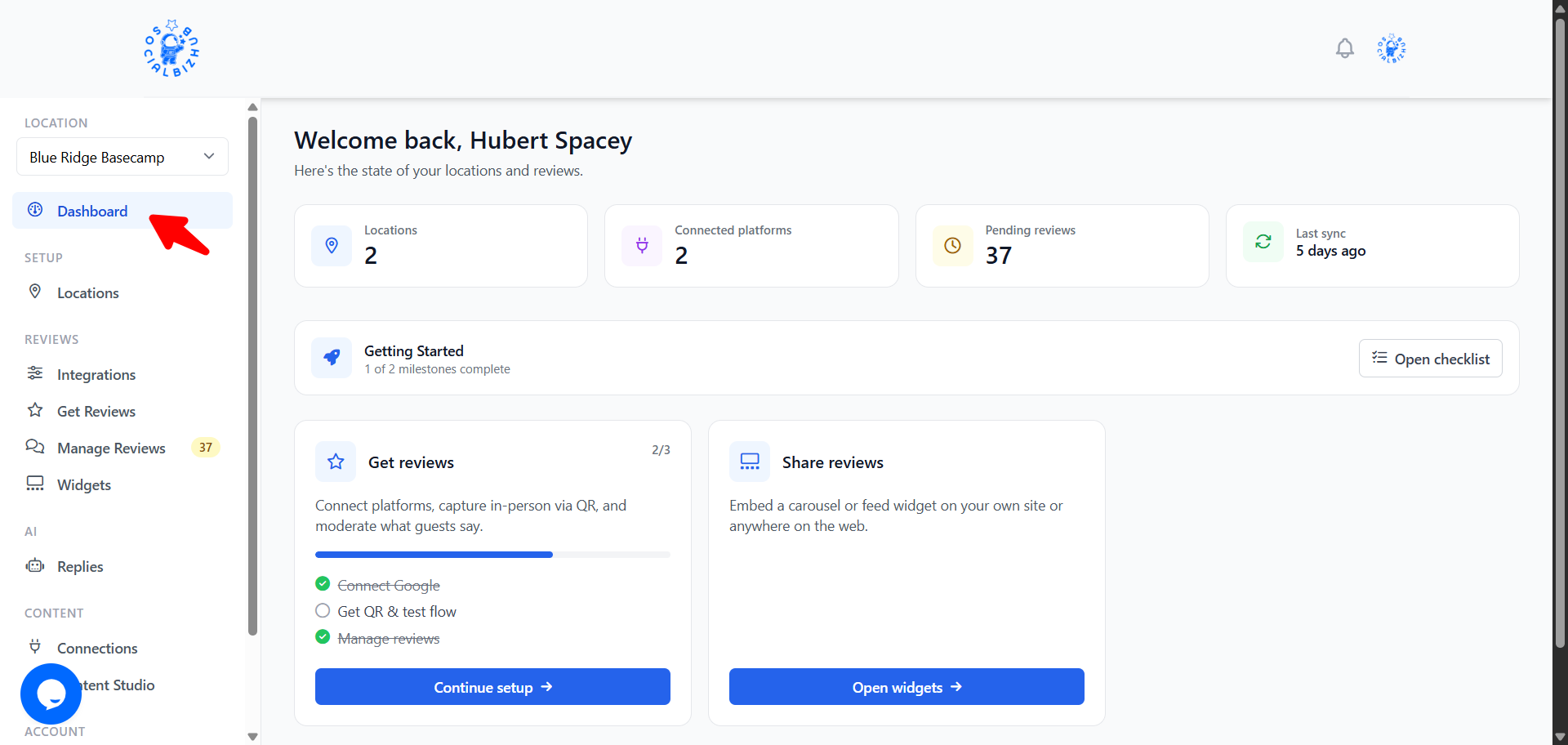
After login, the Dashboard shows an at-a-glance view of the location you have selected (switch locations from the sidebar):
- Website health — your A–F site grade (or "Not graded yet")
- Average rating and how many reviews it's based on
- Pending reviews waiting for you to approve
- Connected platforms — how many review sources are linked to this location
- AI credits left this month
- Last review sync
Once a location has reviews coming in, you'll also see Recent reviews (your latest 5, with rating, source, and a preview of the text) and Needs attention — quick counts of reviews awaiting approval and reviews awaiting a reply, each linking straight into Manage Reviews.
Below that you'll find Getting Started (a milestone checklist — open it from Open checklist) and workflow cards that shortcut into reviews, your website, and widgets. The checklist tracks setup progress; use the articles above for step-by-step detail. Once you've completed both onboarding milestones (added a location, and started collecting and managing reviews), the checklist is replaced by a one-time "You're all set up!" banner that you can dismiss.
Plans and account settings
Your plan controls how many locations you can create, which features appear in the sidebar, which integrations you can connect, and whether widget branding can be removed.
→ Plans & Billing · Account & Settings
Frequently asked questions
I only see some menu items — is something broken? No. The sidebar shows features included in your plan. Upgrade or contact support if you need a feature that is not listed.
Do I need technical skills? No. SocialBizHub is built for business owners. Copy-and-paste is enough for integrations and widgets.
Where do I get help? Browse this Help Center from Documentation & Support in the sidebar, or click Contact support to chat with us.
Can someone set this up for me? Yes — if you'd rather not do it yourself, our team at CLIMB IT Solutions offers optional done-for-you help (website fixes, getting set up, content, and more). It's separate from your subscription. When there's something worth a closer look, you'll see a Book a free review button on your Dashboard or Website pages — the first 30-minute review is free and we'll walk through your own data with you.