

AI Replies helps you respond to your Google reviews faster. Connect your Google Business Profile, generate an AI‑written reply you can edit, and post it straight to Google. You can also turn on an optional grace‑period auto‑reply that posts a draft for you after a delay — unless you reply first.
Step 1 — Open AI Replies
In the sidebar, under AI, click Auto-Replies. Use the location switcher to pick the location you want to set up, then use the platform tabs (Google, Facebook, Instagram) to choose which one to configure.
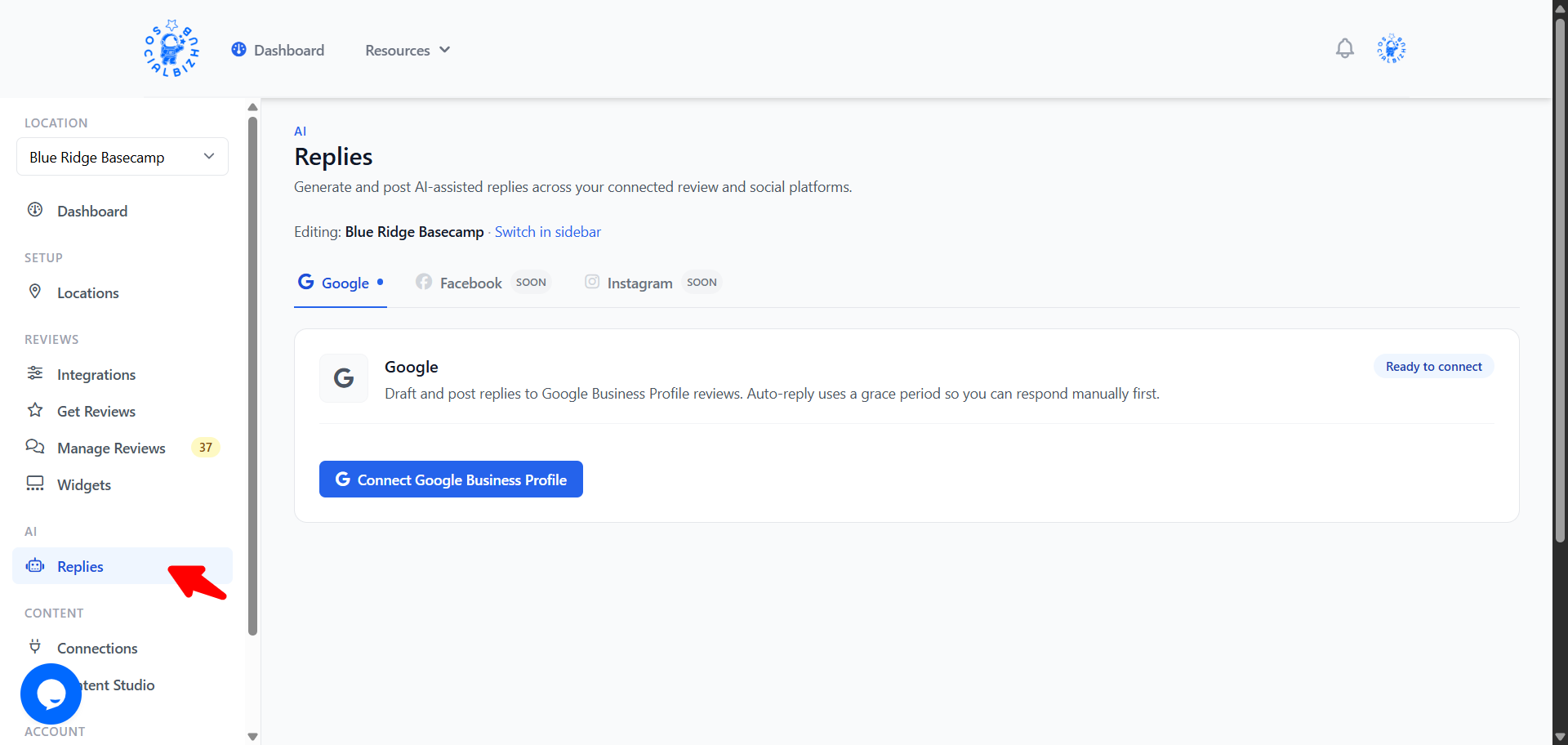
Step 2 — Connect your Google Business Profile
- On the Google card, click Connect Google Business Profile.
- Sign in with Google and grant access when prompted.
- If your Google account manages more than one business location, choose the one that matches this SocialBizHub location.
Connecting here is what allows SocialBizHub to post replies to Google. (The basic Google connection on the Integrations page only imports reviews — it can't post replies.) Connecting your Google Business Profile here also marks Google as Connected on the Integrations page automatically, so you don't need to connect Google twice.
Step 3 — Choose your reply settings
On the same page you choose a reply mode for this location. The mode applies to every review source, but only Google is ever posted automatically — other platforms always wait for you to post (see "Replying on Yelp, TripAdvisor, Airbnb and more" below).
- Manual — you generate drafts on demand and post every reply yourself.
- Approve then post — for Google, the AI drafts a reply for each new review automatically so it's ready for you to approve; nothing posts until you do.
- Auto with grace period — Google replies post automatically after a delay
(for example, "4 hours") unless you step in first. You also set:
- Minimum rating — only auto‑reply to reviews at or above this star rating.
- Auto‑post delay — how long to wait before an approved draft posts.
Auto‑drafting and auto‑posting apply to Google only. For every other platform you generate a draft on demand with the Generate AI draft button in the Needs reply queue, then copy it and post it on that platform — see Replying on Yelp, TripAdvisor, Airbnb and more.
You can also set Reply tone and Sign‑off (for example, "The {Your Business} Team") in any mode — a live sample preview updates as you type.
Click Save reply settings when you're done.
Step 4 — Reply to reviews
Replies happen on the Manage Reviews page. For any Google review:
- Generate AI draft — creates a suggested reply in the text box. Use Regenerate to try again.
- Edit the wording however you like.
- Post to Google — publishes your reply to the review on Google.
If you've enabled auto‑reply with a delay, eligible new reviews show a live countdown ("Auto‑replies in 3h 59m unless you post first"). Posting manually before the timer ends cancels the automatic reply.
The "Needs reply" queue
When AI Replies is set up, Manage Reviews shows a Needs reply tab that gathers every review still waiting on you — from every source, not just Google (Yelp, TripAdvisor, Airbnb, Vrbo, Booking.com and The Dyrt all appear here too). Working from this tab keeps you at "inbox zero."
- Post to Google — for Google reviews, your reply posts straight to Google.
- Copy reply + Open {platform} — for every other platform, copy your draft and open your listing to paste it (see the next section).
- Ignore — for reviews you don't plan to answer. They leave the queue. You can always click Reply anyway to bring one back.
- Edit reply — already posted a Google reply? You can update it and overwrite the one on Google (handy for fixing a typo or following up).
See Replying on Yelp, TripAdvisor, Airbnb and more for the copy‑and‑paste flow.
What about reviews a customer edits later?
If a customer changes their review after you've already replied, SocialBizHub flags it as "Updated since your reply" and brings it back into your queue so you can decide how to respond. For your protection, SocialBizHub never auto‑replies to an edited review — those always wait for you.
Facebook & Instagram: comment keyword auto‑DM
If you've connected Facebook or Instagram in Content → Connections, a tab for that platform appears on the Auto‑Replies page. There you can set up a keyword → auto‑DM automation: when someone comments a word you choose (for example, BOOK) on any of your posts or reels, they instantly receive a direct message — perfect for sending a booking link or a PDF.
For each automation you set:
- Keywords — the words that trigger it (leave blank to reply to any comment).
- DM message — the message commenters receive, with an optional button (label + link, e.g. "Book now").
- Public reply (optional) — a visible comment reply like "Check your DMs!"
You can pause, edit, or delete automations any time. Each automation shows how many times it triggered and how many DMs were sent, plus a Recent activity list of the most recent commenters and whether their message was delivered — so you can confirm at a glance that it's working. (This just requires Facebook or Instagram to be connected in Content → Connections.)
Frequently asked questions
Do I have to turn on auto‑reply? No. The default is Manual only: you generate drafts and post them yourself. Auto‑reply is entirely opt‑in.
Can I reply to a review without generating a draft first? Yes — just type your reply and click Post to Google.
Can I reply to reviews from other platforms? Yes. AI drafts work for every review source you've connected — Google, Yelp, TripAdvisor, Airbnb, Vrbo, Booking.com and The Dyrt. Only Google can be posted automatically; for the others you copy your draft and paste it on the platform. See Replying on Yelp, TripAdvisor, Airbnb and more.
Does this work for Facebook or Instagram? Posting public review replies is for Google (auto‑post) and the other platforms above (copy‑and‑paste). For Facebook and Instagram, you can set up keyword auto‑DMs instead (see "Facebook & Instagram: comment keyword auto‑DM" above). Connect those accounts in Content → Connections and their tabs appear here automatically.
Will my replies show up in my website widgets? Your replies appear in your SocialBizHub dashboard and on Google. The public review widgets show the guest's review (replies are not displayed in the widget).