

Beyond importing reviews from other platforms, SocialBizHub gives every location its own review landing page where customers can rate you, Get Reviews tools to share that page (link, QR poster, downloads), and a Manage Reviews dashboard to approve, hide, or remove reviews.
Open Get Reviews in the sidebar (under Reviews). Use the location switcher to pick which location you are working on.
What your customers see
Each location has a public review page (for example
https://socialbizhub.com/l/your-location). Customers do not need an account.
Leaving a public review and private feedback
Your review page gives every guest two things, no matter how they feel:
- Public review buttons for each platform you've connected (Google, Airbnb, Tripadvisor, The Dyrt, Yelp, Airbnb). Each button opens that platform so the guest can post their review publicly.
- A private feedback form that comes straight to you and is never posted publicly. Guests can tap what stood out or let them down — the options are tailored to your business type (a campground shows things like Check-in, Noise, and Amenities; a restaurant shows Food quality, Service, and Order accuracy) — add a note, and optionally leave their name and email for a personal follow-up.
The public review option is always available to every guest, at every star rating. The private form is an extra way to reach you — it never replaces the public review path or hides it from anyone. (This keeps you on the right side of Google's review policy and the FTC's rules.)
When a guest sends private feedback rated 3 stars or lower, you get an email alert so you can follow up — but this happens after they've already had the chance to leave a public review.
Get Reviews (preview, share, print, download)
The Get Reviews page has four tabs:
Preview
- See exactly what customers experience on your review landing page.
- Choose how your page asks for reviews (see the next section).
- Use Open full preview to try the live page in a new tab.
Share link
- Copy your review page URL to email, text, or social media.
Print poster
- Choose a poster size (Letter, A4, 4×6, 5×7, or 8×8 square).
- Optionally add a headline.
- Click Print / Save as PDF for a print-ready poster with QR code.
Digital download
- Download PNG or Download SVG of the QR code.
- Optionally use a transparent background.
- Copy review link to share the URL directly.
Anyone who scans the code or opens the link lands on your review page for that location.
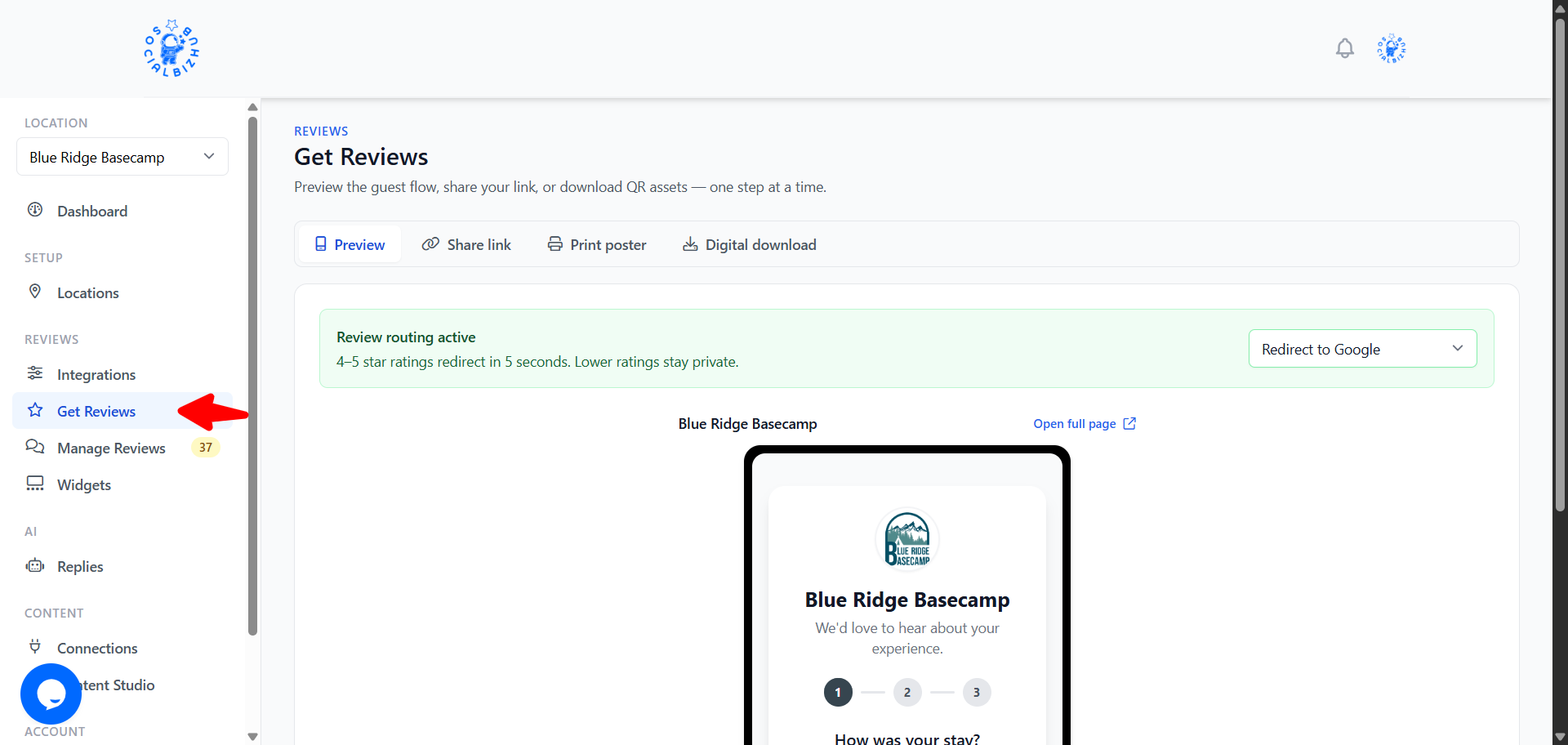
Choose how your page asks for reviews
On Get Reviews → Preview, the Choose how your page asks for reviews selector lets you pick one of three layouts. Every layout keeps the public review path open to all guests — they only change the look and the order things appear in, which affects how many reviews you collect.
- Stars + dual path (Recommended — best for the richest feedback) — the guest taps a star rating first, then sees both the public review buttons and a private feedback form together.
- Direct ask (best for the most reviews) — the public review buttons are front and center, with a subtle Contact the team link for anyone who wants to reach you privately.
- Service-first (best for service recovery) — the page leads with a "Problem during your stay?" prompt that opens a private message to your team, with the public review buttons always shown right below it.
To switch, just click a tile on the Preview tab — it saves immediately, and the live preview updates. Use Open full preview to see the real page.
If no platform is connected yet, you'll see a Connect a review platform prompt — connect Google or another platform so your review page can show public review buttons to guests.
The review buttons use the same platforms you set up on the Integrations page. See Setting Up Integrations.
Managing your reviews
Open Manage Reviews in the sidebar to moderate everything in one place.
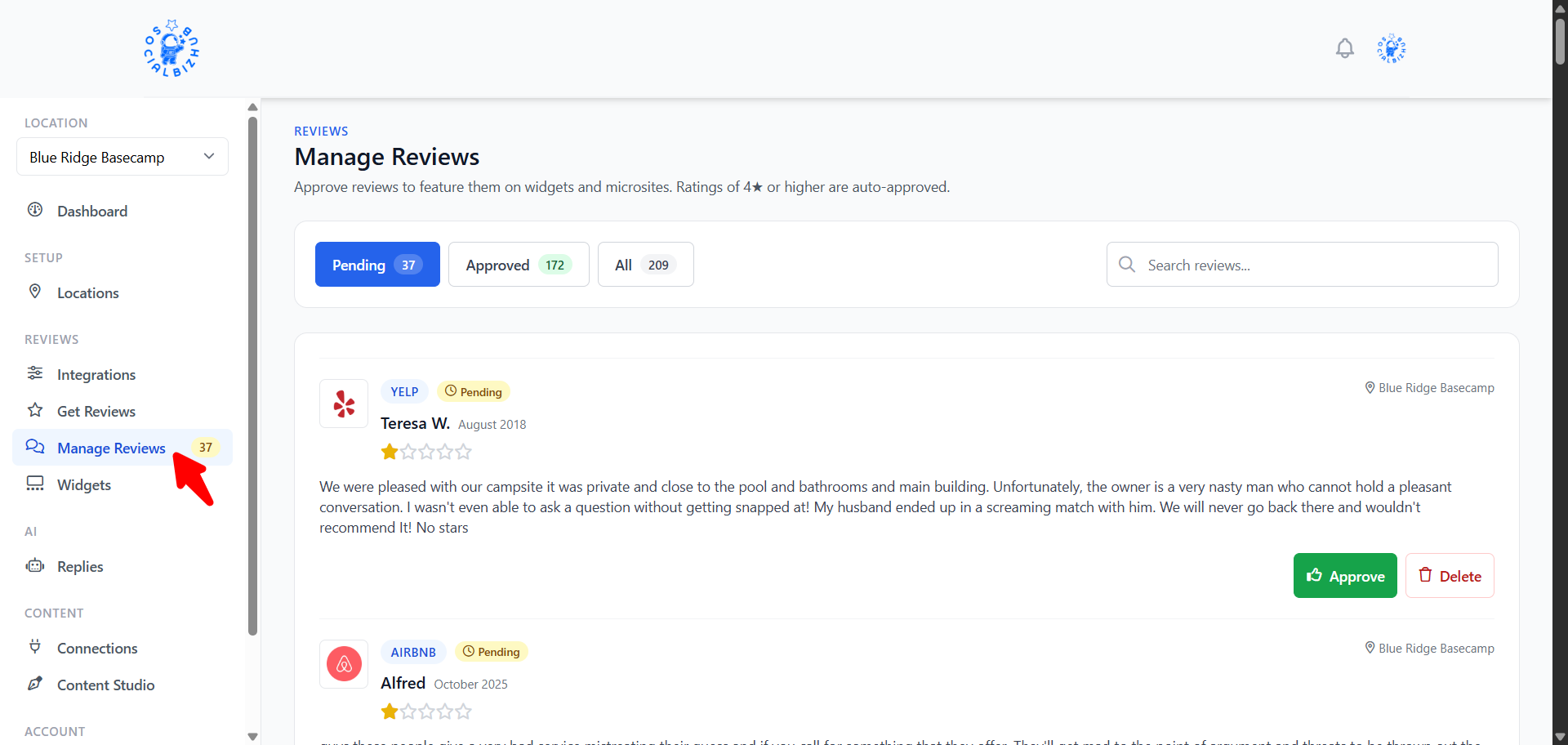
- Tabs: Pending, Approved, and All, each with a count. There's also a search box.
- Approve / unapprove a review with one click. Approved reviews are the ones that appear on your website and review widgets.
- Delete a review to hide it.
- Reviews rated 4 stars or higher are approved automatically; lower-rated reviews wait in Pending for you to review.
If a customer later edits a review you'd already approved, SocialBizHub automatically moves it back to Pending so you can re-check it before it shows publicly again.
If you've connected Google Business Profile, you'll also see reply tools and a Needs reply tab here — see AI Review Replies (Google).
Frequently asked questions
Where do approved reviews show up? On your location's website and in any review widgets you've embedded on other sites. See Embeddable Review Widgets.
Why is a review stuck in Pending? Reviews below 4 stars aren't auto-approved — they wait for you. Approve it from the Pending tab if you'd like it shown publicly. Low-rating reviews also show the reasons the guest tapped and their follow-up email (if they left one), so you can reach out before deciding.
Can customers leave a review without an account? Yes. The review landing page is public — they scan your QR code or open the link, then either tap a platform button to post a public review or use the private feedback form to message your team directly.
How do I make sure guests can leave us a Google review? Connect Google on the Integrations page. Once it's connected, a Review on Google button automatically appears on your review page for every guest — there's no rating filter and nothing else to switch on. The same is true for any other platform you connect (Airbnb, Yelp, Tripadvisor, and so on). If you don't see any review buttons in the Preview, connect a platform first.
Can I send unhappy guests to a private form instead of Google? No — and that's on purpose. Sending only happy guests to public platforms ("review gating") violates Google's policy and the FTC's rules. Your page always offers the public review option to everyone; the private feedback form is an extra channel on top of it, so you still hear about problems and can make them right.
I deleted a review by mistake — can I get it back? Deleting hides a review from your lists and public displays. If you need help recovering one, contact support.