

SocialBizHub writes an on‑brand reply draft for reviews on every platform you've connected — not just Google. Google replies can post automatically, but most other platforms don't allow apps to post replies on your behalf. For those, we make replying fast: generate a draft, copy it, open your listing, paste, and mark it as replied.
This works for Yelp, TripAdvisor, Airbnb, Vrbo, Booking.com, The Dyrt, and Booking.com (Hipcamp, RV LIFE and Campendium were retired on 2026-09-06 — reply on those platforms directly).
Why copy‑and‑paste instead of auto‑posting?
We only auto‑post where it's genuinely allowed. Google's official tools let businesses publish replies, so SocialBizHub posts those for you. Yelp and TripAdvisor restrict review responses to certified partners and don't permit software to post on a business's behalf, and Airbnb, Vrbo, and Booking.com have no public way for outside apps to post replies at all. Rather than pretend to auto‑post and risk your account, we hand you a polished draft and send you straight to the right place to publish it yourself. It takes seconds and keeps you fully compliant with each platform's terms.
Step 1 — Open the Needs reply queue
In the sidebar, go to Reviews → Manage Reviews and open the Needs reply tab. It lists every review still waiting on you, across all your connected platforms.
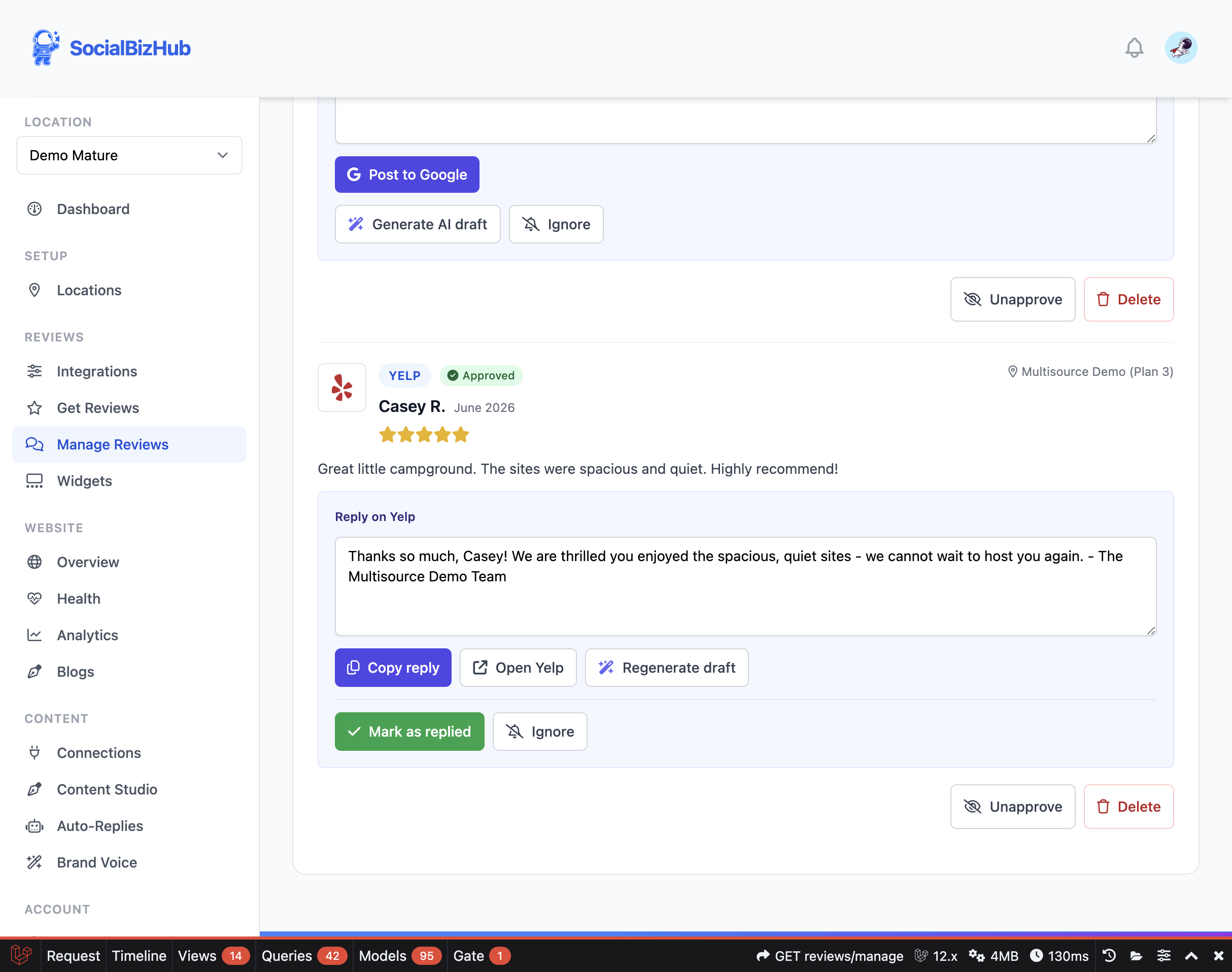
Step 2 — Generate and review the draft
On a non‑Google review, click Generate AI draft. An on‑brand reply appears in the text box — shaped by your Brand Voice, tone, and sign‑off. Edit it however you like, or click Regenerate draft to try a different version.
Step 3 — Copy, open, and paste
- Click Copy reply to copy the draft to your clipboard.
- Click Open {platform} (for example, Open Yelp) — your listing opens in a new tab.
- Find the review on that platform and paste your reply into its response box, then post it there.
Tip: If Open {platform} isn't shown, add your listing link on the Integrations page so we know where to send you.
Step 4 — Mark it as replied
Back in SocialBizHub, click Mark as replied. This saves your reply to the review for your records and removes it from the Needs reply queue, so you always know what's done. (It doesn't post anything — you already posted it on the platform.)
Not planning to answer a review? Click Ignore to take it out of the queue. You can bring it back any time with Reply anyway.
Frequently asked questions
Does "Mark as replied" post my reply anywhere? No. It only records the reply on your SocialBizHub dashboard and clears the review from your queue. You post the reply yourself on the platform in Step 3.
Do these drafts use my Brand Voice? Yes — drafts for every source use your Brand Voice, tone, and sign‑off, just like Google replies.
Will Yelp or TripAdvisor ever post automatically? Not today. Those platforms limit responses to certified partners; we may add a partner option in the future. For now, copy‑and‑paste keeps you compliant.
Do my replies show in my website widgets? No. Replies you record here are for your own records and live on the platform you posted them to. The public review widgets show the guest's review only.